Vantage Now Integrates with Ramp
Automatically sync Ramp merchant and transaction data into Vantage as Custom Providers.

Today, Vantage is announcing a native integration with Ramp, allowing customers to sync merchant and transaction data with Vantage. Once connected, customers can select which Ramp vendors they’d like Vantage to automatically import as Custom Providers, and Vantage will sync the corresponding transactions.
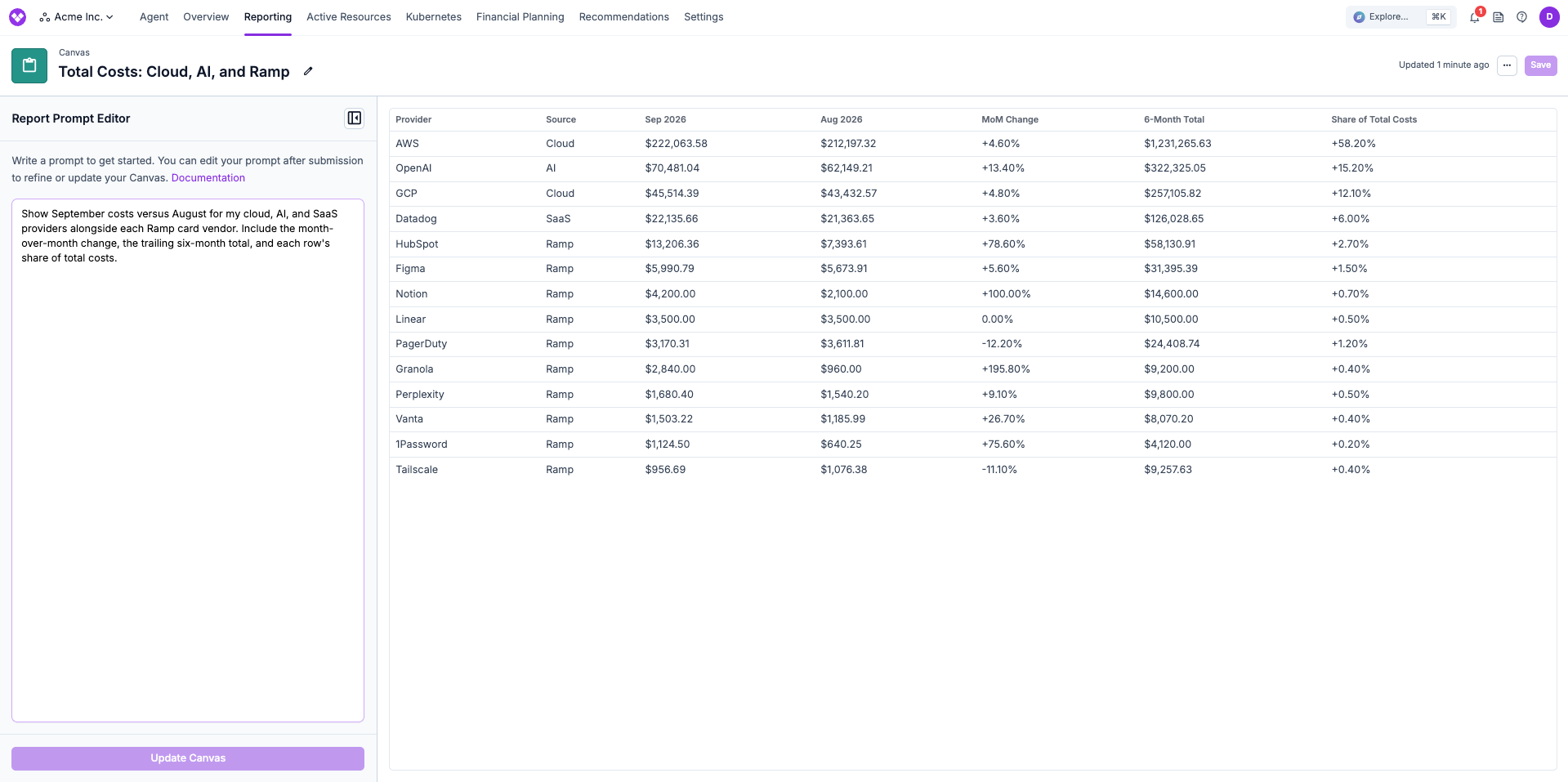
Customers are increasingly using Vantage as their holistic FinOps platform, tracking more than just infrastructure costs that go into their cost of goods sold. While Vantage already covered the bulk of their costs with native integrations directly to cloud, SaaS, and AI providers, there was often a long tail of other vendors that they leveraged to run their business. Customers could already load these vendors themselves through Custom Providers, but that meant maintaining a CSV for each one.
Now, customers who use Ramp connect it with a Client ID and Client Secret, then choose which merchants Vantage should track. Each selected merchant becomes its own Custom Provider, and Vantage syncs that merchant’s settled card transactions every day. This gives customers a single platform for managing all costs without any manual effort and is the first modern foray into what has traditionally been referred to as IT asset management. All Vantage features like Cost Reporting, Virtual Tagging, Anomaly Detection, and Budgeting will work for Ramp-related transactions.
Vantage’s Ramp integration is available to all customers, including users in the free tier. To get started, open Settings, select Integrations, and choose Ramp under Additional Integrations. For setup details, see the documentation.
Frequently Asked Questions
1. What is being launched today?
Vantage is launching a native Ramp integration that lets customers connect merchant and transaction data from Ramp as Custom Providers in Vantage. This helps customers track the long tail of costs for which Vantage may not offer native integrations.
2. How much does this cost?
There is no additional cost for this functionality. Costs synced from Ramp will contribute to tracked infrastructure limits for existing subscriptions.
3. I’m a Ramp customer. How do I integrate Ramp with Vantage?
Open Settings, select Integrations, and choose Ramp under Additional Integrations. Enter the Client ID and Client Secret from a Ramp Developer app.
4. How does Vantage integrate merchant data from Ramp?
Vantage will profile all the merchants and their associated transactions. You can choose which merchants to include or omit and edit this at any time.
5. How do I choose which merchants are synced with Vantage?
On the Ramp connection page in Vantage, browse or search the list of merchants from your Ramp account, select the ones you want to track, and connect them. You can add or remove merchants from the same page at any time.
6. How much historical data does Vantage import from Ramp?
Vantage imports the current month and the previous six months of settled transactions.
7. Can I use Custom Provider metadata synced from Ramp in Virtual Tags?
Yes. Data from Ramp works just like data from any other integration.
8. How often does Ramp data refresh in Vantage?
Vantage imports a merchant’s data as soon as you connect it. After that, data refreshes once daily.
9. If I connect Ramp and later start working with a new merchant, how do I add that merchant?
Once the merchant appears in Ramp, open the Ramp connection page in Vantage, find the merchant in the list of merchants that are not yet connected, select it, and connect it.
10. Can I connect more than one Ramp account?
No. Each Vantage account has one Ramp connection. To switch to a different Ramp Developer app, or to replace a Client Secret you rotated in Ramp, update the Client ID and Client Secret on the existing connection. Connected merchants keep importing. You do not create a second connection.
11. My Ramp transactions include providers for which I already have a native integration connected to Vantage. What should I do in that case?
Keep the native integration. You’ll always get higher-fidelity data from a native integration versus transaction data from Ramp. If that provider is already connected, the Ramp merchant is marked Overlaps native and cannot be selected. If you connect the native integration after importing the merchant from Ramp, disconnect that Ramp merchant so the costs are not counted twice.
12. How do I remove a specific merchant that’s currently being synced to Vantage from Ramp?
Open the Ramp connection page in Vantage, select the merchant from your connected merchants, and disconnect it. This deletes that merchant’s Custom Provider and its imported costs.
13. Will Custom Providers synced via Ramp be present under the Custom Provider portion of the Integrations page?
Yes. They appear in the Custom Providers list next to providers you created yourself, with a Managed by Ramp badge. You can rename one, add a description, upload an icon, and assign workspaces. You cannot upload a CSV or delete it from that page. To remove it, disconnect the merchant on the Ramp connection page.
14. Can I add a logo for a Ramp merchant?
Yes. Open the merchant’s Custom Provider page and, on the Manage tab, upload a JPEG, PNG, or GIF no larger than 5 MB. That icon shows up wherever the provider appears, including Cost Reports, filters, the Overview page, tags, and anomaly alerts. If you do not upload one, Vantage uses the default Custom Provider icon. To change it later, remove the current icon and upload a new one.
Sign up for a free trial.
Get started with tracking your cloud costs.